Download
Windows Independent guide

HiBit Uninstaller Clean removal for programs that refuse to leave quietly.

Practical walkthrough: real features, a safe uninstall workflow, and fixes that match how the desktop app behaves.

Freeware
Full core workflow
Forced uninstall
Broken entries
Leftover scan
Files & registry
  • Forced vs normal uninstall and when each is the right call.
  • Startup, services, junk tools for post-uninstall hygiene in one place.
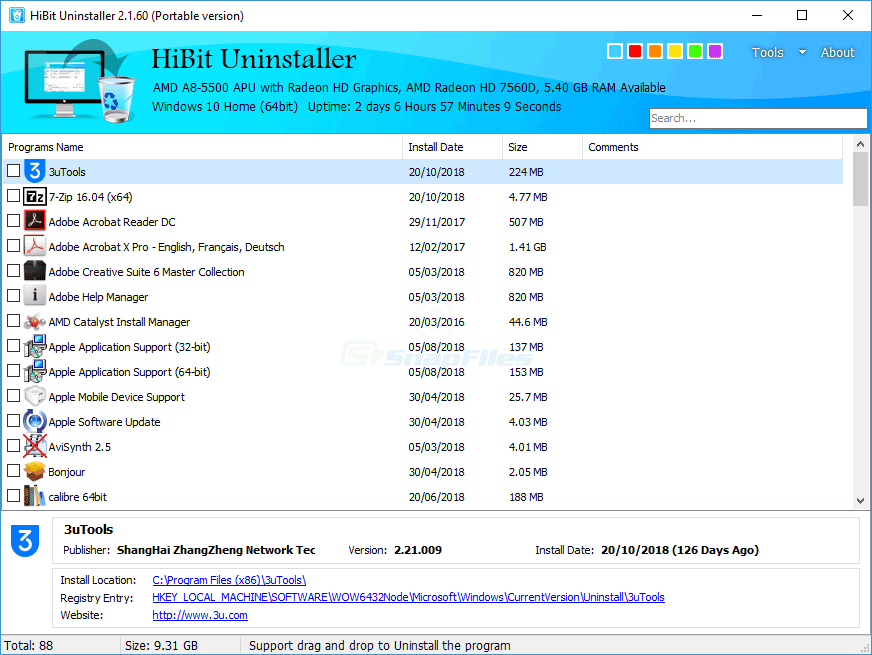
HiBit Uninstaller main window showing the installed programs list and program details

Always review leftover lists before confirming deletes.

Capabilities

What HiBit Uninstaller actually gives you

Most users come for uninstalls; they stay because the same build usually bundles cleanup and system helpers. Exact menus differ by version. Treat this as a capability map, then verify labels in the build you download.

Uninstall core Leftover intelligence Forced removal System tools
HiBit Uninstaller: installed programs list, search, and program details panel
Removal

Complete uninstall & leftovers

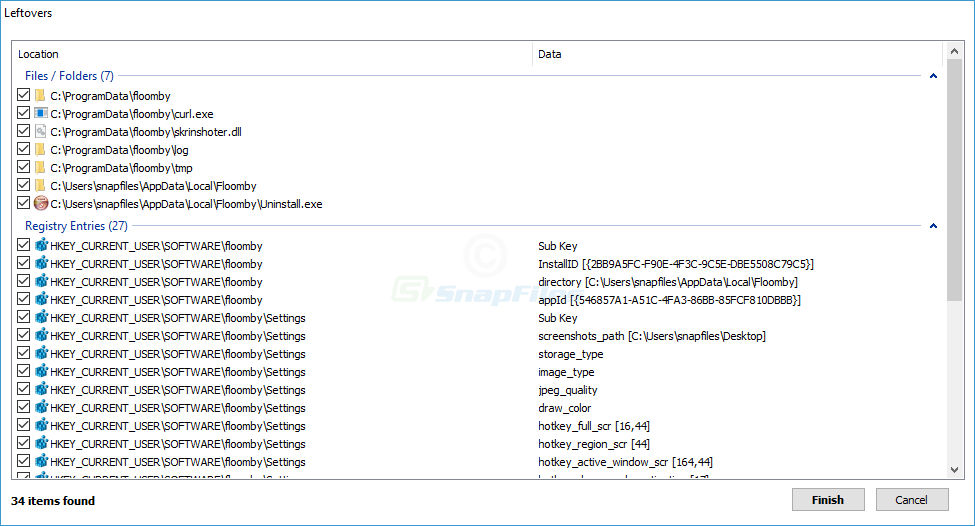
Standard uninstallers often stop when the vendor wizard exits. HiBit is built to continue the story: scan for folders, scheduled tasks, services, and registry debris, then let you approve each line instead of bulk-deleting blindly.

  • Batch uninstall and quick search on long program lists
  • Windows Store (UWP) handling in many releases
  • Designed around review, not one-click “clean everything”
Recovery

Forced uninstall

HiBit Uninstaller: interface detail view for verifying paths before removal

When the entry in Apps & Features is broken, the MSI is gone, or the uninstaller crashes in a loop, forced mode can clear the registration and paths. Only after you confirm the target and snapshot the system.

  • Use when the normal path is missing or non-functional
  • Avoid on security suites and low-level drivers without vendor guidance
  • Pair with restore points on production PCs
Privacy & hygiene

Shred, junk, and traces

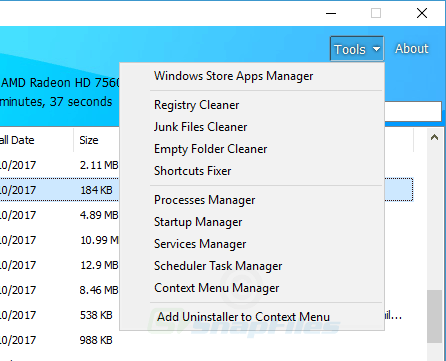
HiBit Uninstaller: tools and maintenance utilities in the same workspace

Uninstalling sensitive tools or old installers sometimes needs secure deletion plus cache sweeps. Junk modules target temp detritus updaters leave behind; still read results before confirming.

  • File shredder for confidential leftovers
  • Junk / temp cleanup aligned with uninstall sessions
  • Prefer selective passes over “delete all suggested”
HiBit Uninstaller: main workspace where uninstall connects to startup, services, and restore tools
System layer

Maintenance companions

Software that hooks startup, services, or Task Scheduler can look “uninstalled” while still respawning. HiBit often ships helpers to audit those layers and manage restore points, so your uninstall story ends with a stable boot, not a mystery process.

  • Startup and service visibility after removals
  • Scheduled tasks that reinstall or update silently
  • Restore point tools to pair with aggressive cleanup

How to use HiBit Uninstaller (workflow that scales)

Follow this sequence and you will avoid the two classic mistakes: deleting shared components, and “cleaning” aggressively without a rollback plan.

  1. 1

    Create a restore point (especially on production PCs)

    Before forced uninstall or large leftover sweeps, snapshot the system. It is the fastest undo if you remove a dependency another app still needs.

  2. 2

    Try the standard uninstall path first

    Let the vendor uninstaller run when it still exists. HiBit shines after that step (catching debris) or when the vendor path is broken.

  3. 3

    Run a leftover scan and read every line

    Leftover suggestions can include shared Visual C++ redistributables, shared GPU utilities, or folders reused by suites. If a path looks generic (Common Files, Microsoft), verify before deletion.

  4. 4

    Clean startup & services if the app was persistent

    Some programs respawn from scheduled tasks or services even after removal. Cross-check those modules if the same executable keeps returning.

Real scenarios people describe (and what usually works)

These are composite situations distilled from common support threads and community write-ups. They are not testimonials; they are practical patterns for searchers and newcomers.

“The game launcher uninstalls, but ~40 GB of assets remain in AppData.”

Typical fix: run a leftover scan targeting the publisher folder, then manually verify save games or cloud sync folders before deletion.

“Apps & Features shows the program, but uninstall immediately errors out.”

Typical fix: forced uninstall after noting the install directory; reinstalling the same version once, then uninstalling, is another valid path if files are partially present.

“After removing an antivirus, network stack feels ‘weird’.”

Typical fix: use the vendor’s dedicated cleanup tool first; avoid blanket registry cleaners. HiBit can remove leftovers, but security suites often need official scrub steps.

“Portable apps left behind shell extensions; Explorer still crashes.”

Typical fix: reboot into safe mode if needed, remove shell extensions via the tool’s inventory, then re-register affected components or repair the host app.

Troubleshooting matrix

Quick mapping from symptom to next action. For SEO clarity, these phrases mirror how people search on Google, Bing, and Yandex.

Decorative troubleshooting illustration
Symptom Likely cause Next step
Uninstall button greyed out Broken MSI registration / elevation issues Run elevated; try repair install; then forced uninstall.
Disk space not freed Caches, mod folders, or launcher shards Targeted folder audit + leftover scan.
Program reappears after reboot Scheduled task or managed enterprise policy Inspect tasks/services; check MDM or vendor agent.
Browser extension persists Syncing profile or malicious persistence Remove from browser + scan profiles; offline sync test.

Frequently asked questions

Is HiBit Uninstaller free?
Community sources describe HiBit Uninstaller as freeware without paywalled core removal features. Confirm the license text shipped with the build you download.
Portable vs installer: what should I pick?
Portable builds are convenient on technician USB kits. Installed builds may integrate more tightly with context menus. Pick based on whether you want machine-wide shortcuts and automatic updates.
Does it work on Windows 11?
Publisher documentation historically targets modern Windows releases (64-bit). Always check the version page for your architecture and minimum OS build.
Will registry cleaning speed up my PC?
Selective cleanup of known orphan keys is reasonable; “registry boost” claims are mostly myth. Prefer measurable wins: freeing disk space, reducing startup apps, fixing broken uninstall entries.

Download HiBit Uninstaller

Explore the guide first, then continue with whichever setup path fits your workflow and preferences.

  • Prefer trusted HTTPS pages; avoid “single-click installer” ad wrappers.
  • Expect occasional false positives from aggressive AV heuristics. Verify signatures and source.
  • Keep the portable ZIP in a versioned folder if you support multiple PCs.
  • Pair downloads with restore points when testing unstable software.

Extended uninstall playbook

If you support multiple PCs or test many apps weekly, this deeper playbook helps you remove software with fewer regressions and better repeatability.

Before uninstall

  • Capture app version, install path, and publisher.
  • Save user data paths: Documents, AppData, cloud-sync folders.
  • Stop running processes and optional background agents.
  • Create restore point for system-level products.
  • If shared runtime is present, mark it for manual review.

During uninstall

  • Run standard uninstall first when available.
  • Use forced removal only after normal path fails.
  • Review each leftover entry; avoid broad blind deletions.
  • Check services, scheduled tasks, and startup entries.
  • Reboot once before deciding cleanup is complete.

After uninstall

  • Measure disk delta and verify reclaimed space.
  • Open Event Viewer for recurring app/service errors.
  • Test browser, file associations, and shell stability.
  • Document what was removed for future repeats.
  • Keep rollback notes for 24-48 hours.

Common mistakes that cause trouble

Deleting shared runtimes

Many apps depend on the same runtime packages. Removing them aggressively can break unrelated software.

Cleaning by keyword only

Folder names can overlap by coincidence. A keyword match is a clue, not proof of ownership.

Ignoring startup remnants

An app can appear removed while its updater still runs at boot from Task Scheduler or startup entries.

No rollback strategy

Without restore points or snapshots, one mistaken delete can become a full troubleshooting session.

Method comparison matrix

Use this table to choose the right uninstall depth based on risk, speed, and confidence.

Method Best use case Speed Risk level Recommended checks
Standard uninstall only Healthy app, clean vendor uninstaller Fast Low Quick reboot and disk-space check
Uninstall + leftover scan Typical desktop cleanup Medium Medium Review paths, avoid shared vendors
Forced uninstall Broken entry, missing uninstaller Medium High Restore point + service/task audit
Manual deep cleanup Forensics, stubborn persistence Slow Very high Export keys, path log, staged delete

Operator checklists

Home user quick checklist

  1. Close app and launcher.
  2. Uninstall normally.
  3. Review leftovers line by line.
  4. Do one reboot.
  5. Open app list and verify removal.
  6. Delete only confirmed leftovers.

Technician checklist

  1. Record app details, version, and hashes if needed.
  2. Snapshot critical folders and registry branches.
  3. Run uninstall + forced mode fallback.
  4. Audit startup/tasks/services.
  5. Validate user profiles and browser policies.
  6. Log every manual delete action.

Advanced Q&A

Can uninstalling remove licensing data for other products?
It can if products share activation or runtime folders. Keep vendor folders under review and avoid broad wildcard deletions.
Why does storage not drop after uninstall?
Caches, update packages, and per-user profiles often remain. Check AppData, ProgramData, and custom library locations.
When should I avoid forced uninstall?
Avoid it on security suites, virtualization stacks, and endpoint agents unless you have vendor-specific removal guidance.
Is portable mode always safer?
Portable mode reduces installation footprint, but shell extensions and file associations can still persist in some workflows.
How do I verify cleanup quality?
Track baseline process list, startup entries, scheduled tasks, and disk usage before and after uninstall.
What if uninstall breaks another app?
Use restore point rollback, then reinstall shared dependencies and repeat with a narrower leftover selection.

Glossary and quick terms

Need longer definitions and cross-links? See the full glossary (standalone page).

Leftovers

Files, folders, keys, tasks, or services left after uninstall.

Forced uninstall

Removal path used when native uninstaller is broken or missing.

Startup entry

Auto-run configuration that launches processes at sign-in.

Scheduled task

Background trigger that can re-spawn updater components.

Restore point

Windows rollback snapshot for system-level configuration.

Shared dependency

Runtime components consumed by multiple applications.

Shell extension

Explorer integration that can affect right-click menus.

Policy-managed app

Software reinstalled by organization policy or MDM tools.

Post-uninstall audit

Validation pass for errors, processes, and remaining assets.

Long-form field notes

Software removal sounds simple until mixed environments, old installers, and policy-managed endpoints enter the picture. In practice, uninstall quality depends less on button-clicking and more on method: staged removal, validation checkpoints, and conservative deletion of suspected remnants.

For consumer machines, the highest-value habit is reading every leftover entry before confirmation. For managed fleets, the highest-value habit is change documentation: what was removed, what remained, and what required a follow-up reboot. This saves hours during repeat tickets.

Another practical pattern is to separate functional cleanup from cosmetic cleanup. Functional cleanup focuses on processes, tasks, services, and stability. Cosmetic cleanup focuses on empty folders and minor registry residue. Prioritize stability first, cosmetics second.

When troubleshooting persistent reinstallation, investigate policy channels, vendor agents, and cloud profile sync before suspecting uninstall failure. In many cases, the app returns because another system is designed to restore it. Identifying that source is the real fix.

If your goal is safe optimization, pair uninstall actions with measurable checks: startup time, idle memory, disk impact, and error logs after reboot. Clear metrics beat assumptions and help avoid over-cleaning.

Scenario lab: what to do first

Choose the closest scenario, then follow the first action sequence before trying advanced cleanup.

Game launcher leaves huge files

Audit `AppData`, game library folders, and mod paths before deleting anything marked as leftovers.

Security suite uninstall fails

Use product-specific cleanup guidance first, then verify network adapters and services after reboot.

App returns after every reboot

Check scheduled tasks, startup registry entries, and enterprise policy channels that reinstall software.

Broken context menu remains

Review shell extensions and related COM entries, then restart Explorer to validate behavior.

Portable app leaves residue

Inspect custom folders, temp files, and user profile entries that portable tools sometimes create.

No disk space recovered

Measure storage by top directories and include hidden data stores before repeating cleanup actions.

Workflow blueprints

Light cleanup blueprint (10-15 min)

  1. Run normal uninstall.
  2. Scan leftovers and remove confirmed app-specific entries.
  3. Check startup list for related entries.
  4. Reboot and verify app list + disk impact.

Deep cleanup blueprint (30-45 min)

  1. Create restore point and capture baseline metrics.
  2. Run uninstall path with forced fallback if needed.
  3. Review services, tasks, shell extensions, and browser hooks.
  4. Perform staged deletions and restart between stages.
  5. Run validation matrix and keep rollback notes.

Extended validation matrix

Validation target What to check Pass criteria If failed
Installed apps listEntry removed from UI and registryNo orphan app entryRepair install then remove again
Background processesNo related exe/dll still activeZero active processKill task and inspect auto-start source
Startup locationsRun keys, startup folder, startup managerNo residual startup ruleDisable + delete specific entry
ServicesService list and statusNo orphan serviceStop service and remove definition carefully
Scheduled tasksTask name, trigger, command pathNo app-linked task remainsDisable and remove task
Disk usageBefore/after top foldersExpected space reclaimedAudit cache/mod/profile directories

Search-intent coverage

People search uninstall issues in many ways. This set maps common intent phrases to practical next actions.

“program not uninstalling windows 11”

Run elevated, try repair uninstall, then forced mode.

“app still in startup after uninstall”

Audit startup keys, startup folder, and task scheduler.

“cannot delete leftover files”

Reboot, close handles, use safe mode if lock persists.

“force uninstall missing uninstaller”

Identify install path first, then perform targeted cleanup.

“uninstall broke another app”

Rollback, reinstall shared dependencies, retest.

“disk space not freed after uninstall”

Inspect user profile caches and game/content libraries.

More practical answers

Should I clean registry after every uninstall?
No. Focus on confirmed app-specific keys and stability checks, not blanket registry cleaning.
Can browser policies keep extensions alive?
Yes. Managed profiles can re-apply extension settings after reboot or sync.
Why does uninstall ask for admin rights?
System files, services, and machine-wide paths require elevated permissions for safe removal.
Do I need safe mode for normal cases?
Usually no. Use safe mode only when files are locked or shell extensions keep crashing Explorer.

Removal strategy by software category

Browsers

Check sync profiles, extension policies, and shared cache folders before deleting residual data.

Game launchers

Separate launcher removal from game library cleanup to avoid deleting active installations.

Developer tools

Preserve environment variables and SDK paths if other projects still rely on them.

Security software

Expect kernel hooks and drivers; reboot cycles are often required to complete cleanup safely.

Media suites

Watch for codec packs and helper services that persist across versions or product bundles.

Cloud clients

Pause syncing before removal and verify local cache folders after sign-out and reboot.

Decision tree for stubborn uninstall cases

Branch A: uninstall entry exists

  1. Try standard uninstall with admin rights.
  2. If fails, repair the app version then uninstall again.
  3. If still fails, use forced uninstall with restore point.
  4. Audit leftovers, startup, tasks, and services.

Branch B: no uninstall entry

  1. Identify install directory and executable signatures.
  2. Stop running processes and services first.
  3. Use forced uninstall against confirmed path only.
  4. Reboot and validate system events + shell stability.

Useful locations and checks

Common leftover paths

  • C:\Program Files app folders and helpers
  • C:\ProgramData shared caches and service data
  • %AppData% roaming user configs
  • %LocalAppData% local caches and logs

Quick validation points

  • Process list has no app executables running.
  • No startup entries point to removed path.
  • Task scheduler has no orphan updater tasks.
  • Event log has no repeating service crash loops.

Extended casebook

Case: legacy tool removed but Explorer lags for 10-15 seconds on right-click.

Fix path: disable shell extension, reboot Explorer, then remove leftover COM entries.

Case: office helper app keeps reinstalling overnight.

Fix path: identify management agent, disable deployment policy, then remove local remnants.

Case: uninstall appears successful, but service errors flood Event Viewer.

Fix path: inspect orphan service entries and startup commands referencing deleted binaries.

Case: game anti-cheat remnants block new installation.

Fix path: remove kernel service residues, clear temp installer cache, reboot twice.

Performance and stability notes

Aggressive cleanup is not always better cleanup. The fastest stable path usually removes only verified app-owned assets, then validates startup and service state. If your machine boots correctly and no lingering process remains, avoid chasing every low-value trace.

On older PCs, startup impact often matters more than raw disk reclamation. Disabling orphan startup entries and tasks can produce better perceived performance than deleting a few extra registry keys.

When benchmarking results, use a repeatable routine: reboot, idle for two minutes, record startup load, open common apps, and compare behavior before/after uninstall. Repeatability prevents false conclusions.

For support teams, a documented uninstall runbook can reduce mean-time-to-resolution across repeated tickets. Consistent capture of baseline data and pass/fail checks matters more than one-off deep cleaning tricks.

Mega FAQ

Can uninstall remove shared fonts or codecs?

It can if bundled components were installed globally. Verify ownership before deletion.

Why does app name stay in search?

Index/cache lag can keep stale references briefly. Rebuild index if needed.

Do I need to clear temp folders every time?

Not always. Clear temp data when installer caches are large or errors persist.

What if uninstall hangs at 99%?

Wait, then inspect locked handles/processes before forcing termination.

Can I batch uninstall safely?

Yes for known independent apps; avoid batching tools that share runtimes.

Should I uninstall drivers with app?

Only if no active product still requires them. Driver removal needs extra caution.